I’m Tanya, a university student at the Hong Kong Polytechnic University and a beta tester for the new Comet (GL-RM1). As someone who frequently switches between on-campus and remote work environments, I was eager to explore how a hardware-based KVM solution could streamline device access and improve reliability.
Traditional remote control software—like AnyDesk or TeamViewer—can be helpful, but they often come with limitations: recurring subscription fees, dependency on stable internet connections, and the need to install software on every device involved. Even worse, compatibility issues between operating systems or hardware configurations can result in frustrating disruptions. That’s why I was particularly interested in testing the Comet RM1—to see whether it could offer a more stable, secure, and user-friendly alternative.
| Feature | Remote Software | KVM | KVM Advantages |
|---|---|---|---|
| Connection Method | Network connection, dependent on network quality. | Physical connection, directly via cable. | No latency, highly stable. |
| Security | Relies on network encryption, potential risks exist. | Hardware-level isolated computers, two-factor authentication | Higher security. |
| Cost | Free versions have limited features, premium versions require payment. | One-time hardware investment, no ongoing fees. | More cost-effective in the long run. |
| User Experience | Affected by network conditions, may experience lag. | Real-time operation, fast response. | Smooth operation, no latency. |
For most people, existing remote control tools may be sufficient, but for people like me who need to access office computer files anytime, they are far from convenient. Remote booting itself can be a hassle, and when combined with uncontrollable factors such as network conditions and hardware differences, software-based remote control becomes quite troublesome and unreliable. That was until I discovered Comet, a game-changer that perfectly met my needs—truly a must-have tool for remote control!
Comet is a smart hardware-based remote control device designed for users who need instant access to their office or home computers. This technology is particularly beneficial for:
Once connected and paired with the target device, you can take full remote control—even in cases of system crashes. As long as the KVM is connected to a network, remote troubleshooting and repairs are possible.
For people who frequently work remotely but lack technical expertise and dislike complicated setups, Comet is the ideal solution!
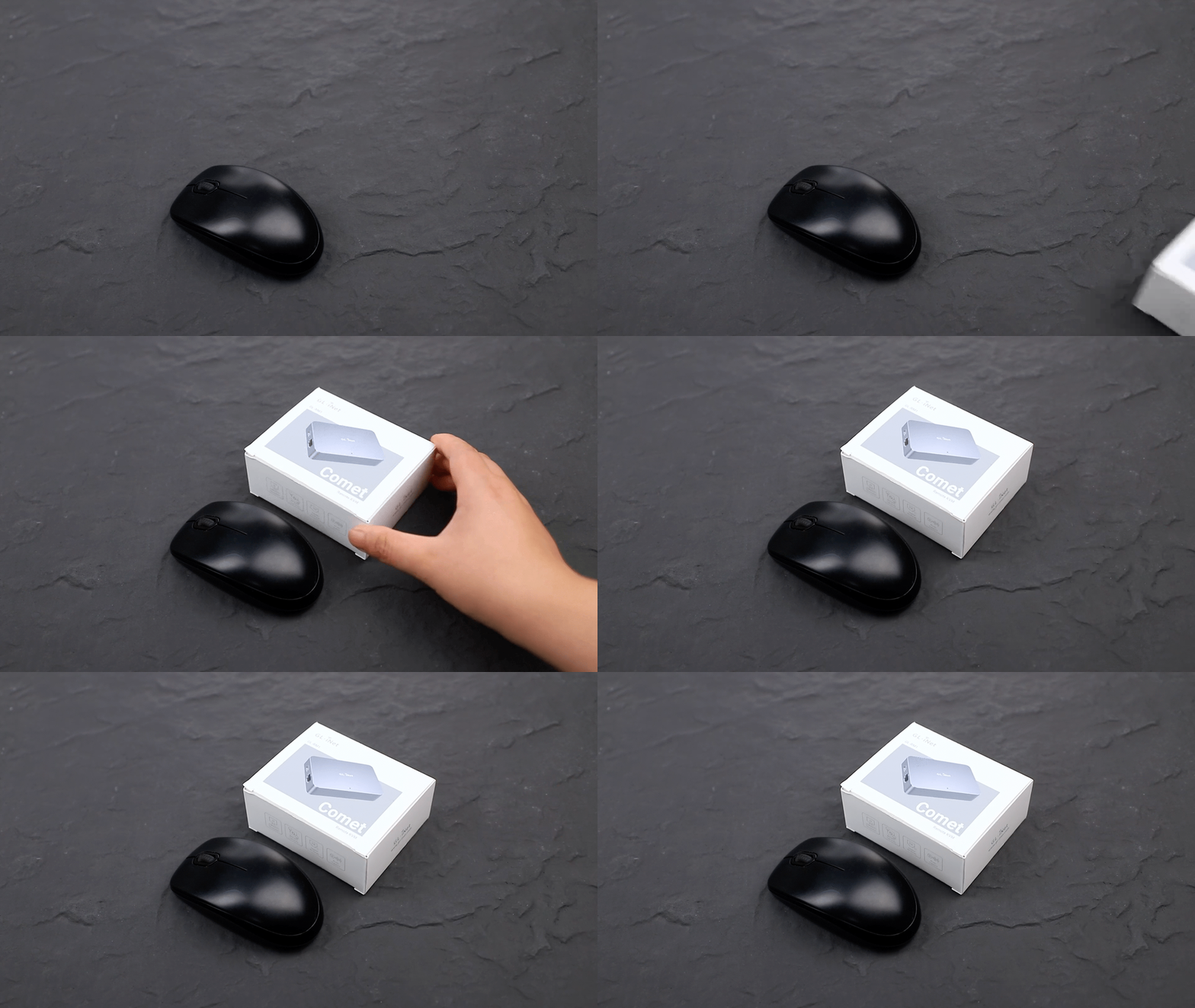
Let’s dive into the exciting unboxing! The device comes in a compact, elegantly designed box, keeping things simple yet stylish. It’s about the same size as my mouse, making it incredibly portable and space-efficient.
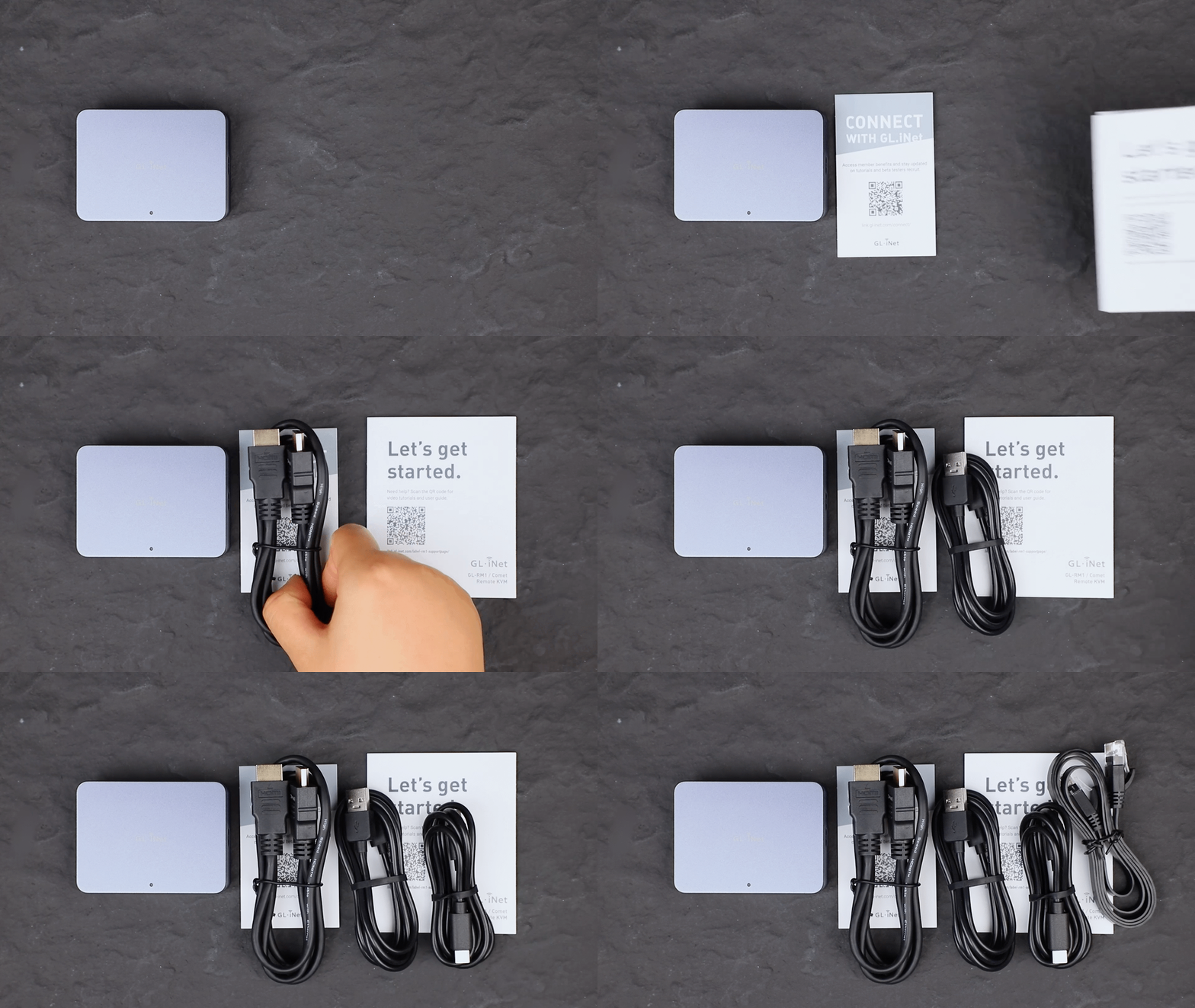
After removing the outer packaging, we found the main device, some user manual and 4 cables including USB cables (both Type-A to Type C and Type-C to Type-C), HD cable, and an ethernet cable. Our first impression was that it was compact yet complete—everything needed is neatly included in this small package.
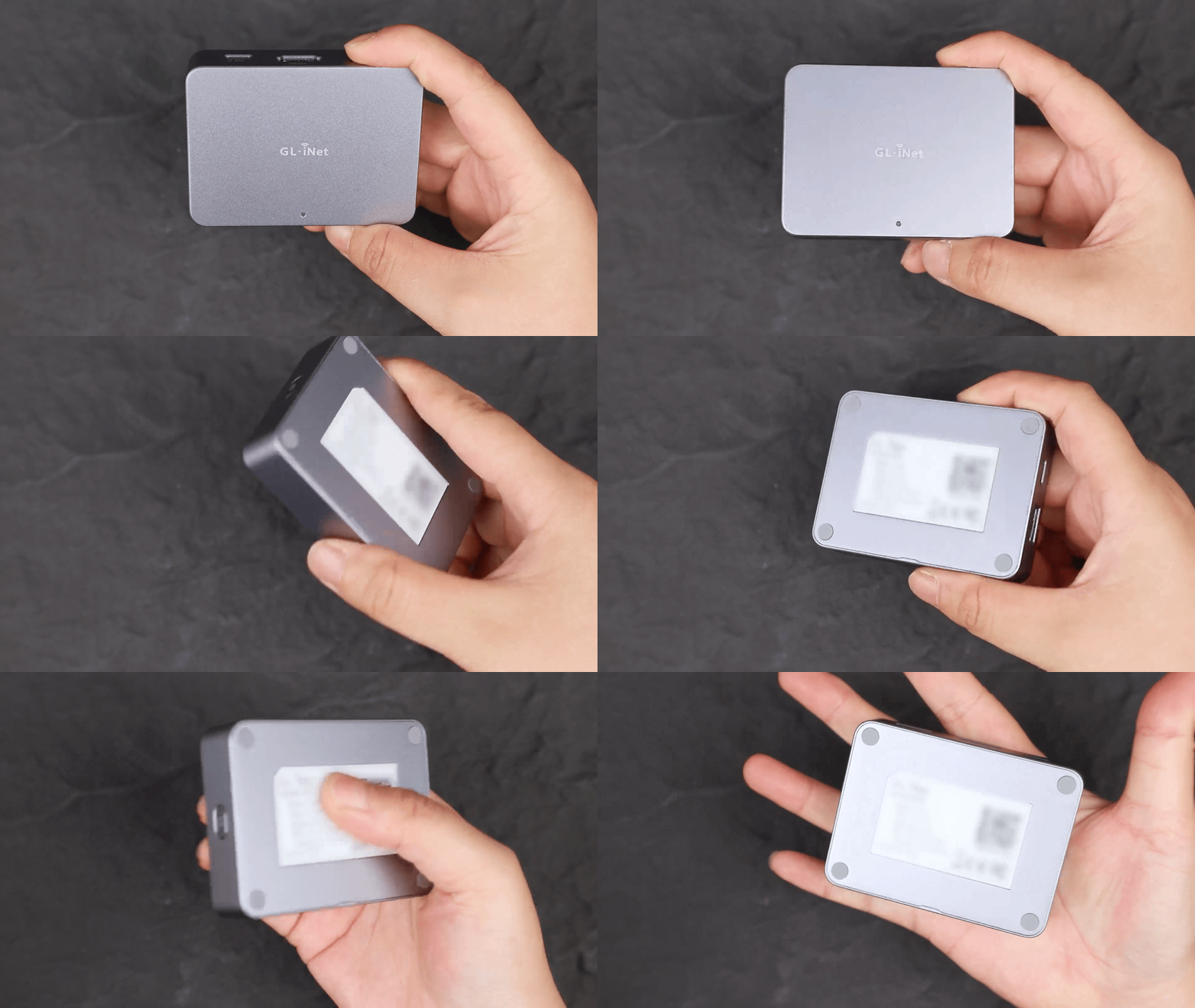
The design is impressive, featuring a matte texture with a subtle silver shimmer. The top surface is minimalist, adorned with a simple logo and a small indicator light, giving it a sleek and premium look.
On the back, you’ll find the basic device information along with four silicone anti-slip pads for stability. And just to emphasize—this device is incredibly compact! Here’s a size comparison with my palm:
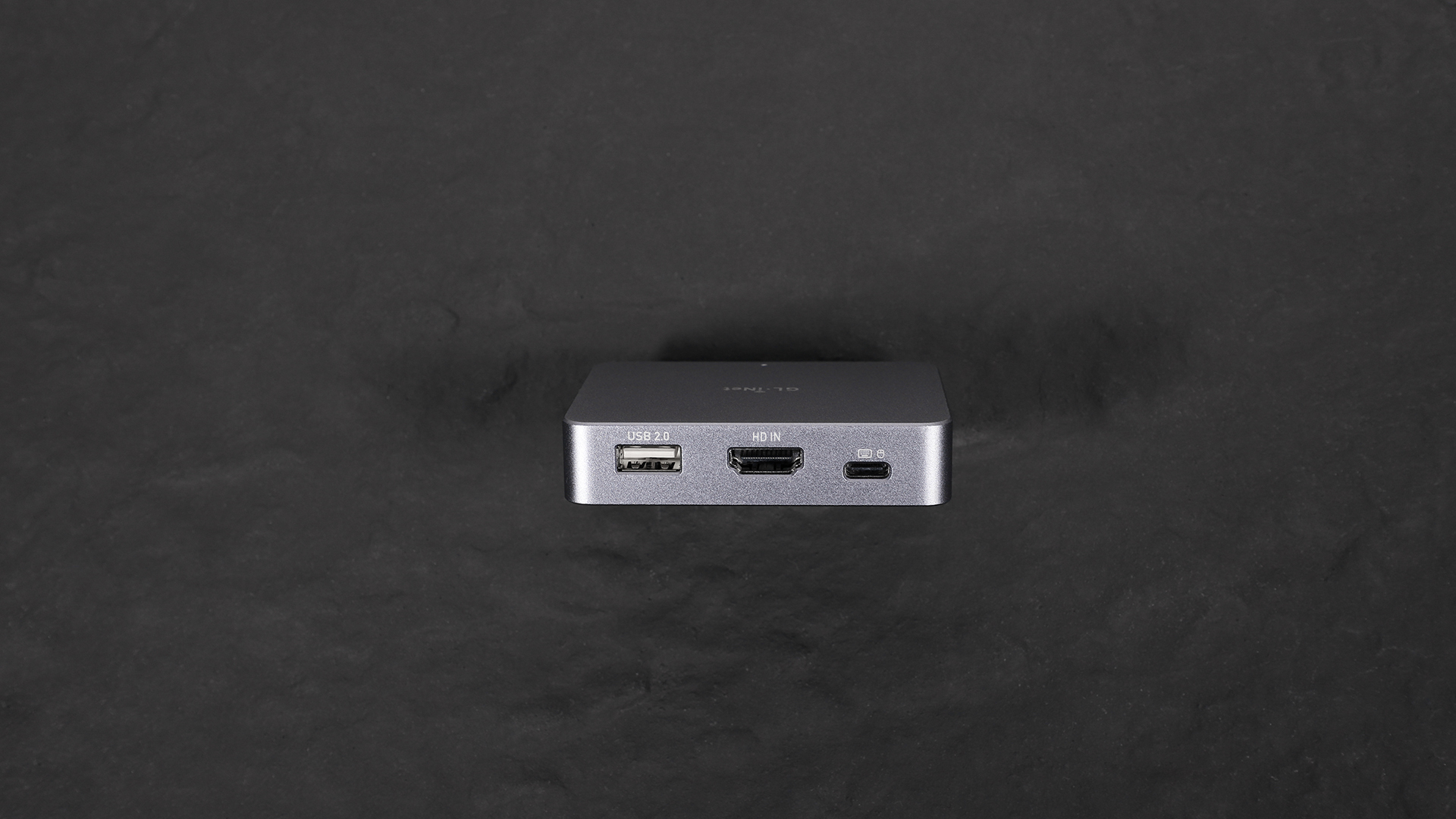
All of its functional ports are neatly arranged on the side panel. On the front side, you’ll find:
This thoughtful layout ensures easy access while keeping the design compact and efficient.
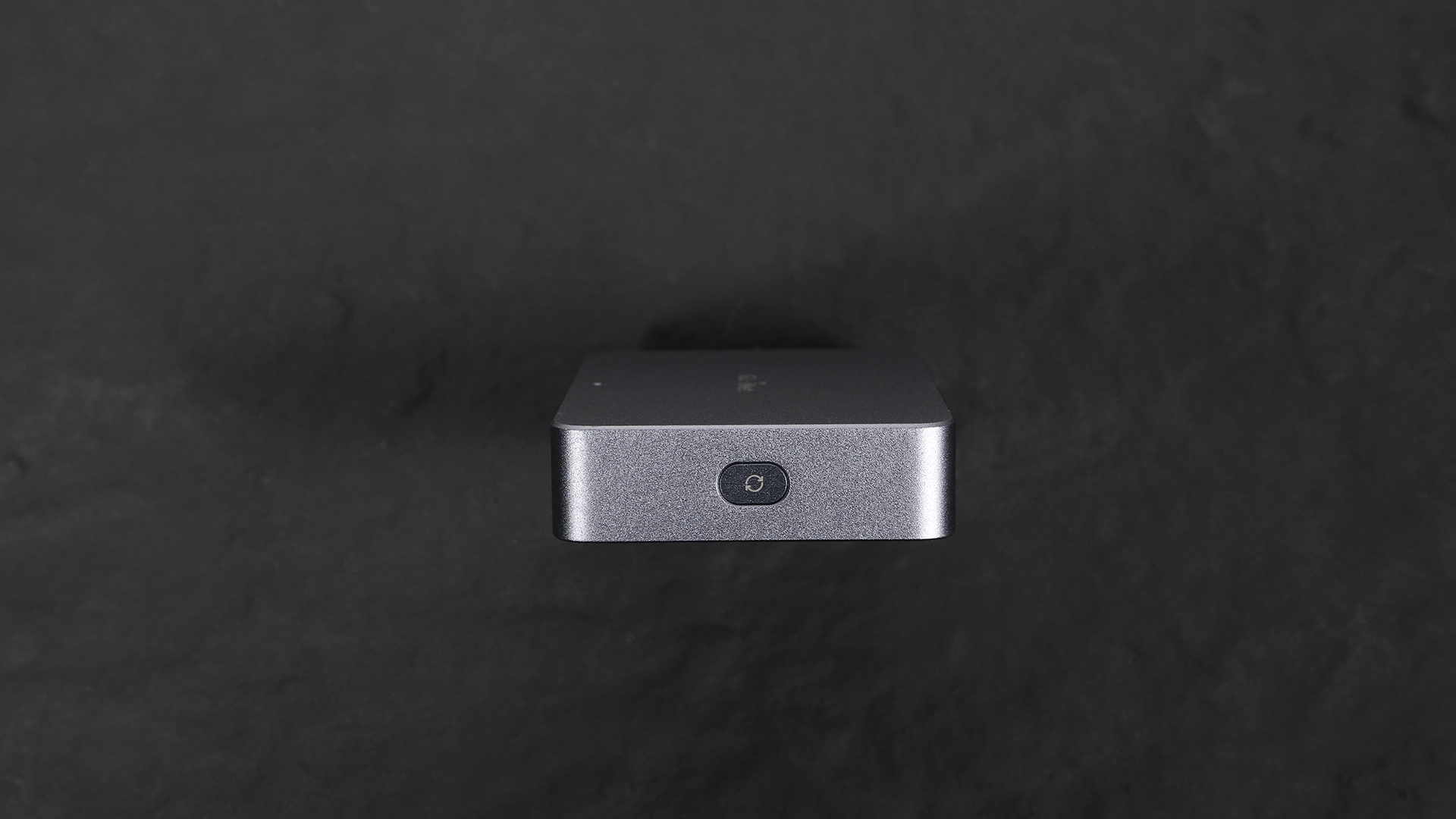
On the left side, there is a reset button. If you ever encounter device malfunctions, network issues, or forget your password, simply press and hold it for 8 seconds to restore the factory settings. This adds an extra layer of convenience and reliability for troubleshooting.
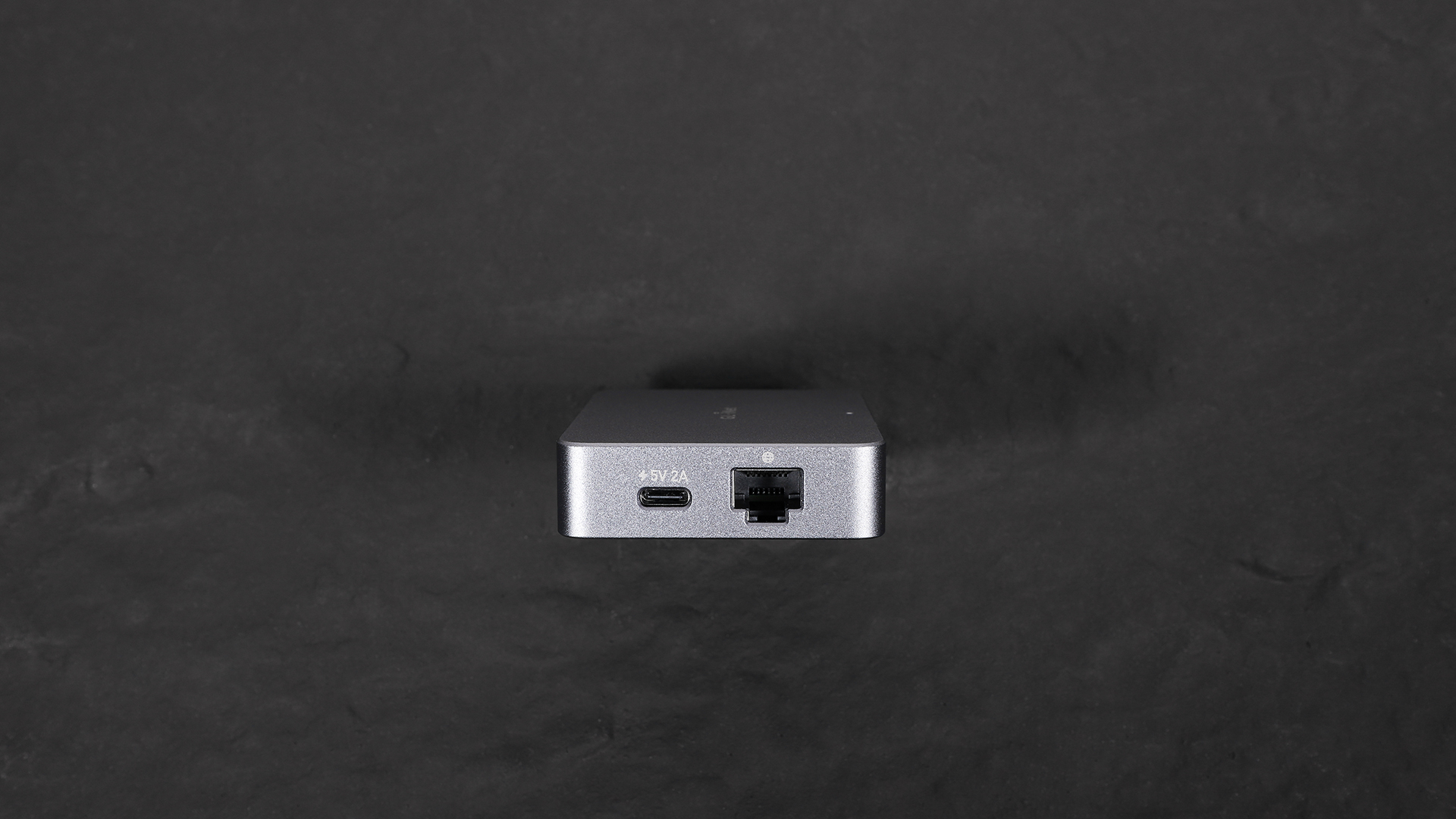
On the right side, you’ll find the power port and network port, which provide power supply and stable network connectivity for the device. This ensures uninterrupted operation and a reliable remote control experience.
Now, let’s set up the device and share my hands-on experience!
To make it clearer in this blog, let’s call our laptop, the one we’re using to control, as “Device A”, and our desktop, the one being controlled, as “Device B”.
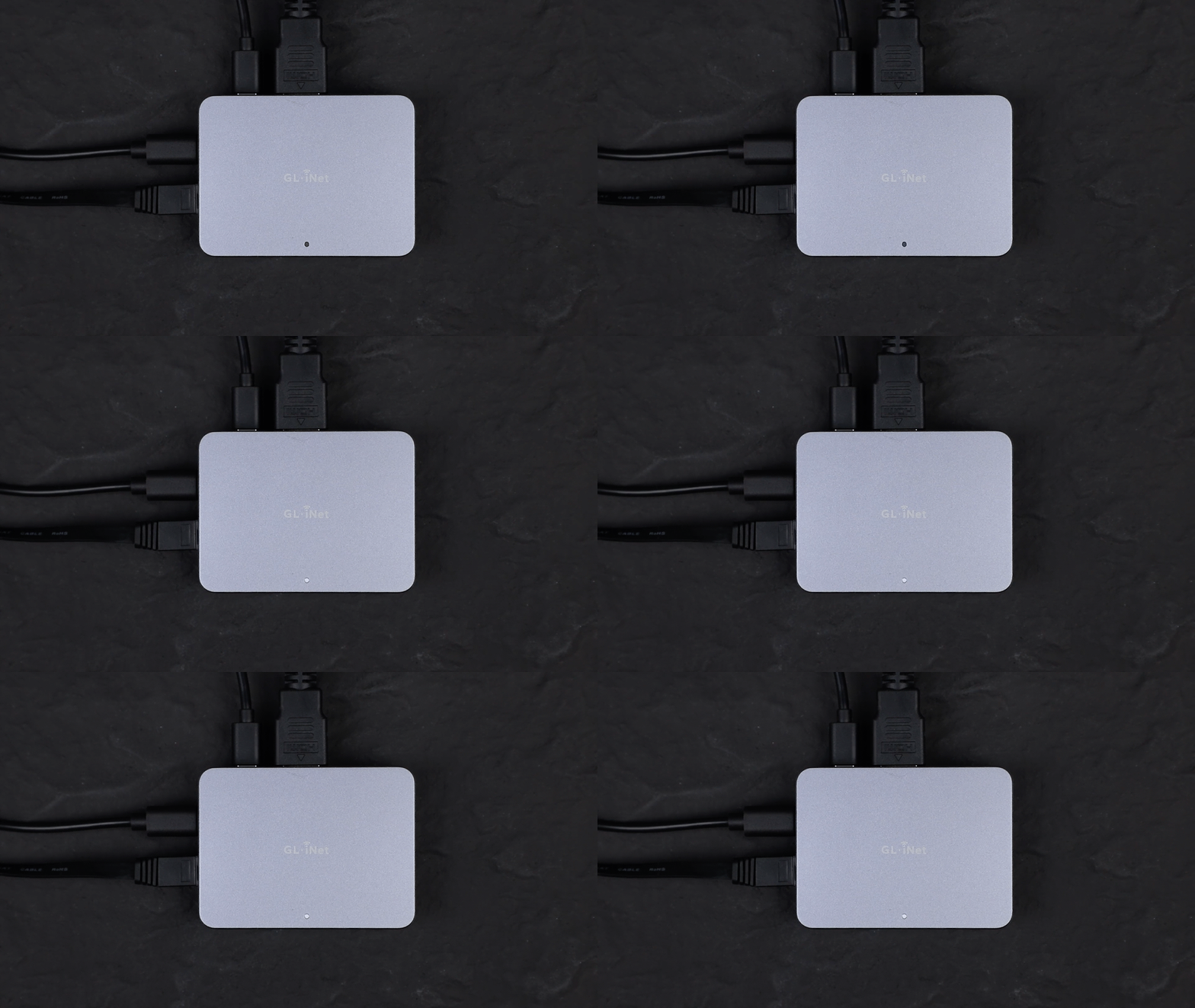
First, I connected the four key ports on the Comet– power, network cable to my router, HD IN and USB to the Device B
Once everything was plugged in, the indicator light remain constantly white, signaling that the device was powered on and ready for use.
Next, I installed GLKVM application on my laptop, Device A. I signed in using my existing GL.iNet account - or you could sign up if you didn’t have one before. This step ensures secure access and remote management of the device.
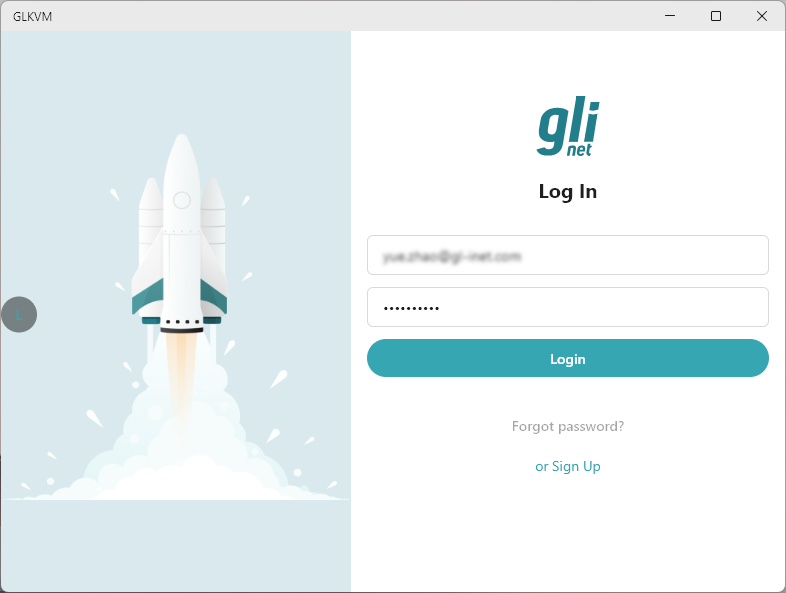
After logging in, I began the process of binding the Comet (GL-RM1) to my account. I noticed that there were two available methods:
Since my laptop wasn’t on the same network at the time, I chose the manual setup method. It was quick and straightforward—just entering the S/N code allowed me to link the device to my account. I also appreciated the option to rename the device, so I labeled it “Office” for easy identification.
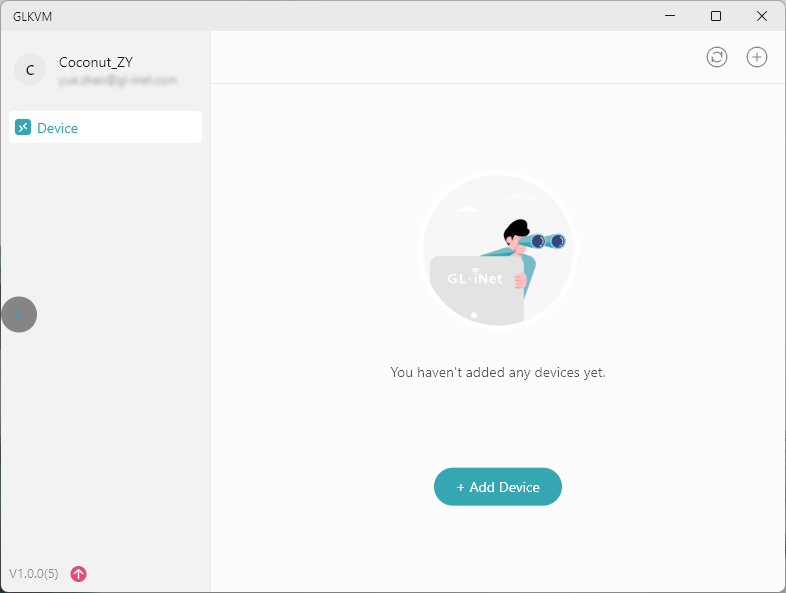
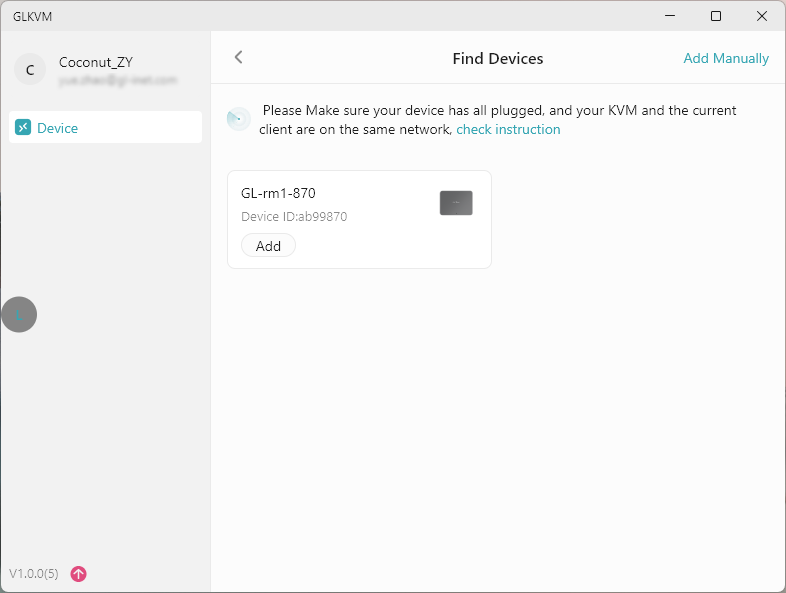
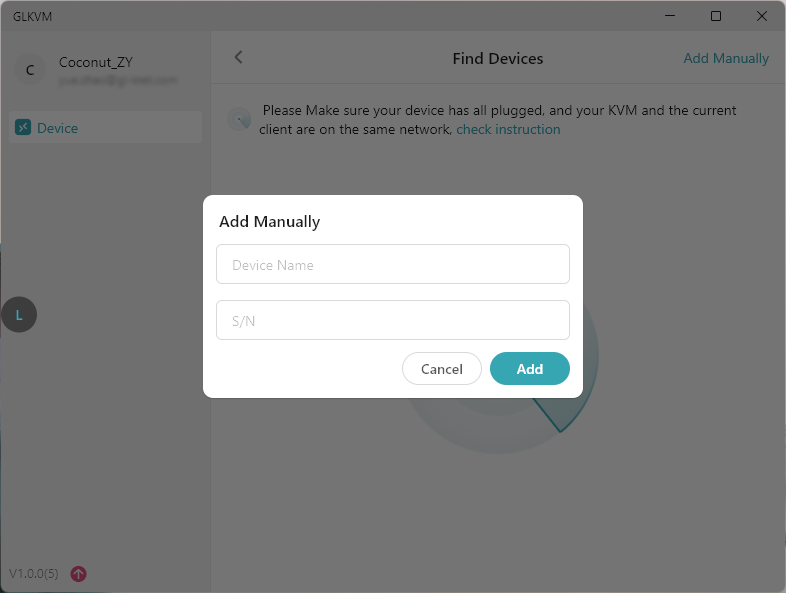
Once the device was successfully binded, I could see that the device I just added is online here so I clicked on the “Remote Control” button, which opened a workspace window.
On the first login, I was prompted to set an administrator password for this device—a feature I really appreciated, as it adds an extra layer of security. After entering the password, I was able to fully control my computer remotely with ease!
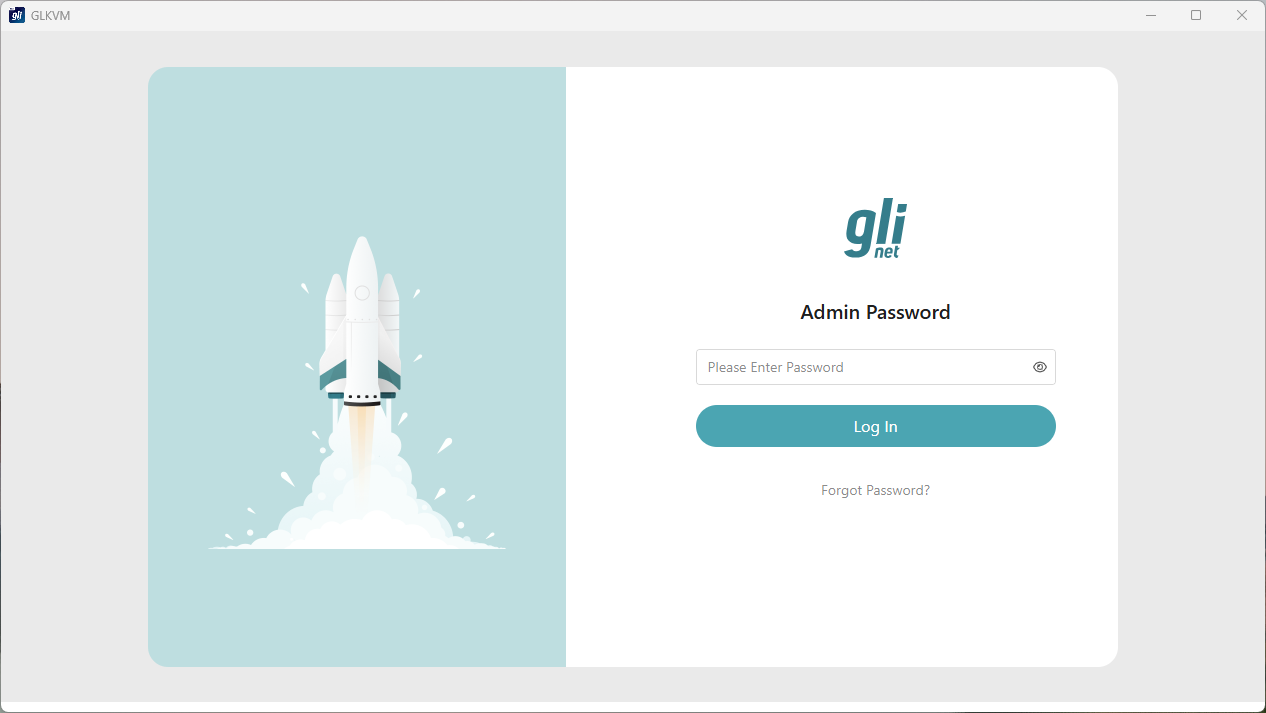
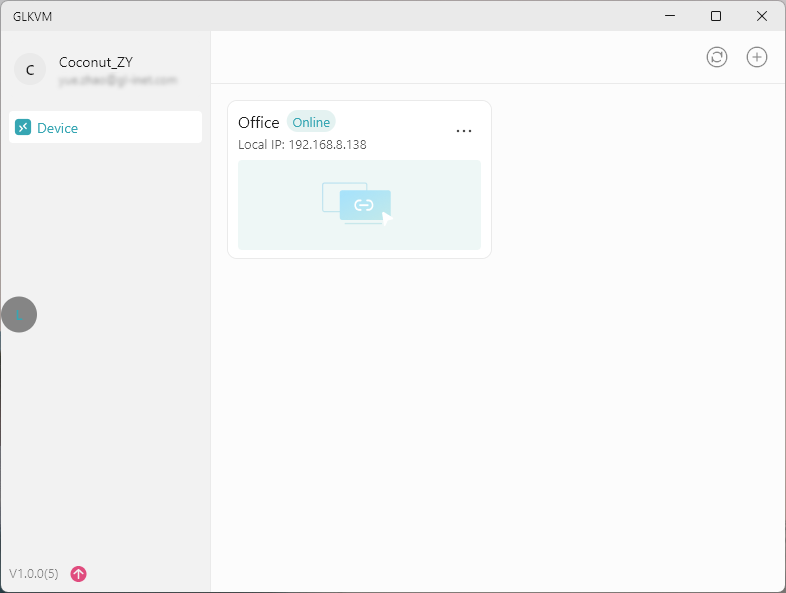
Here’s a look at the remote control interface:
The entire interface is minimalist and intuitive, making remote control effortless and efficient.
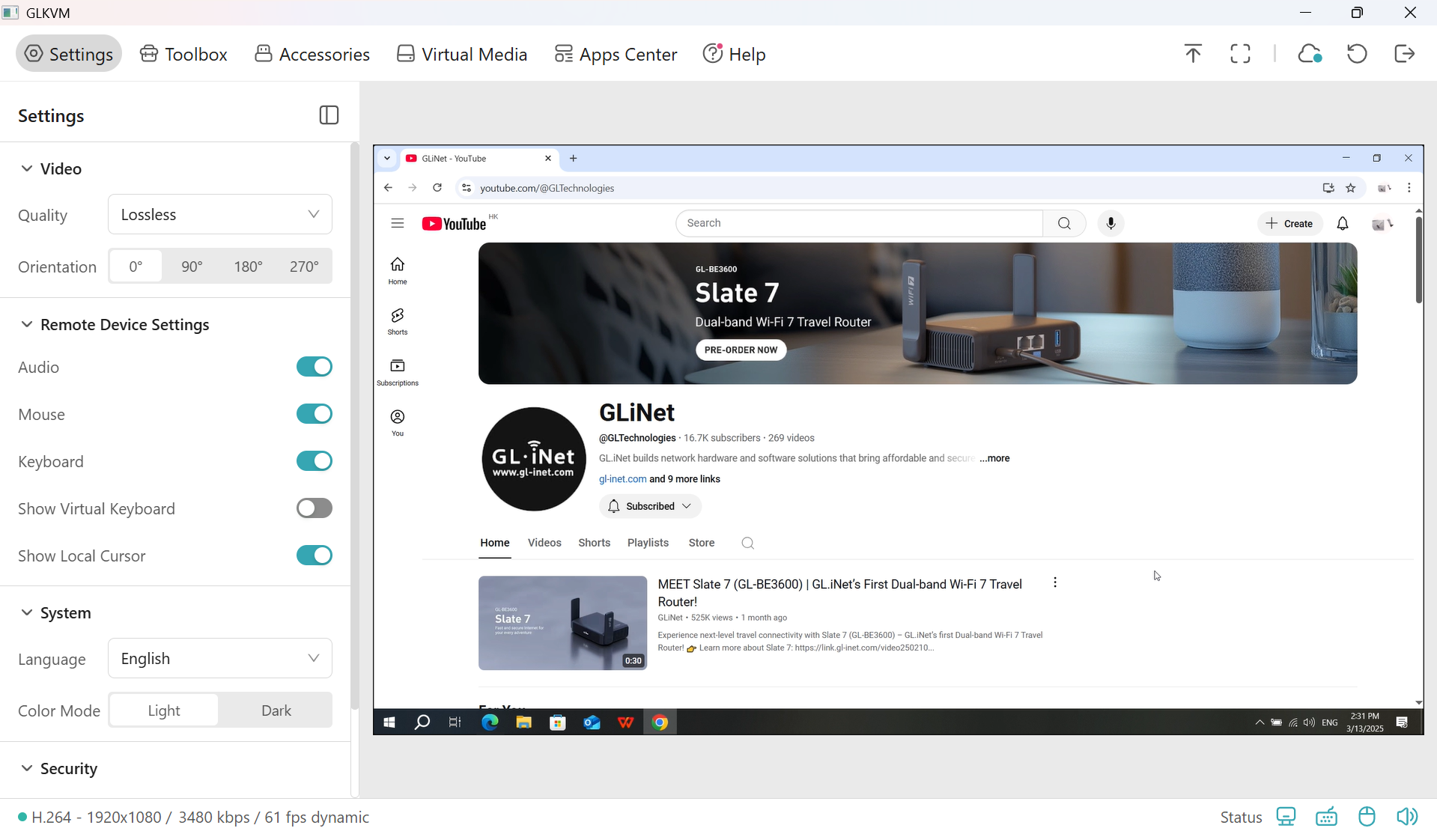
There are several practical and customizable features available, such as:
Even without a technical background, I found the setup process manageable by following the user guide. The interface is intuitive, and most features are easy to understand with just a bit of guidance. However, one usability issue stood out: the virtual keyboard layout is designed with a Windows-style keymap, which may not be familiar or convenient for Mac users. Perhaps adding a toggle for a Mac keyboard layout or providing auto-detection based on the host system would be better.
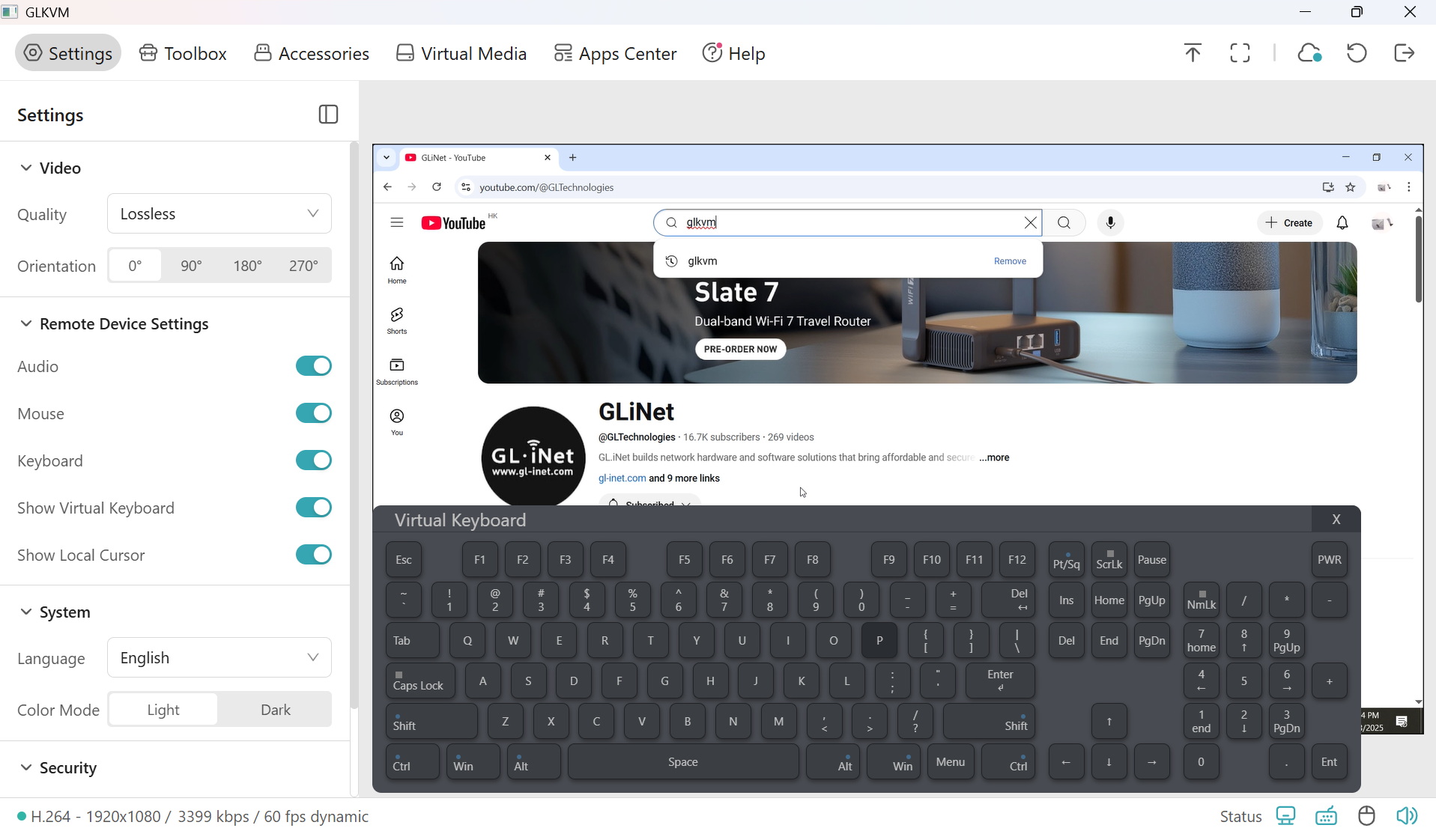
Remote video streaming works surprisingly well. While the GL.iNet team initially stated support for 2K resolution, they later upgraded the device’s capabilities to support up to 4K output. This 4K resolution stayed crystal clear, offering a viewing experience nearly identical to using the original computer. Smooth and reliable, it’s ideal for remote work, media playback, and more.
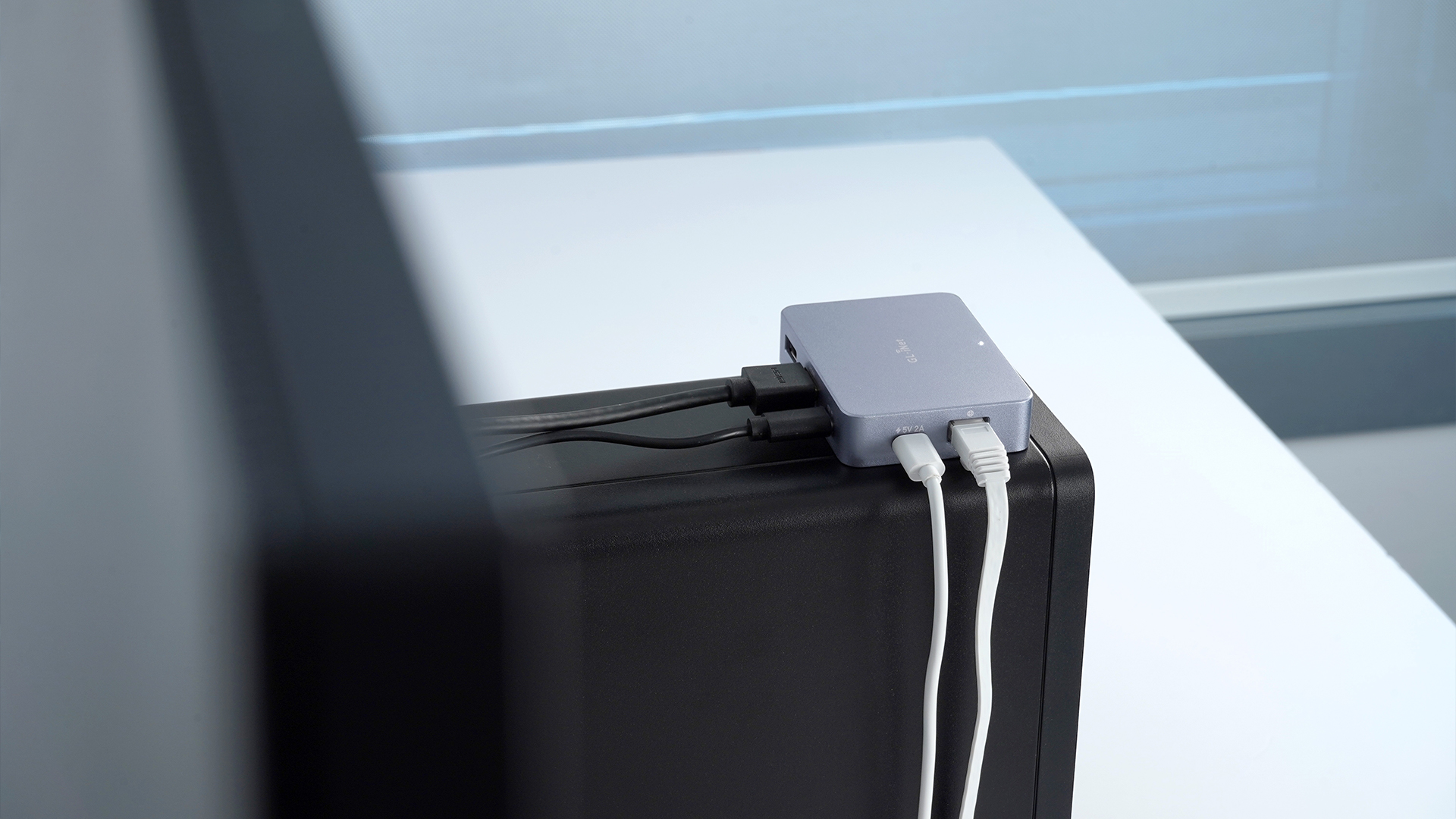
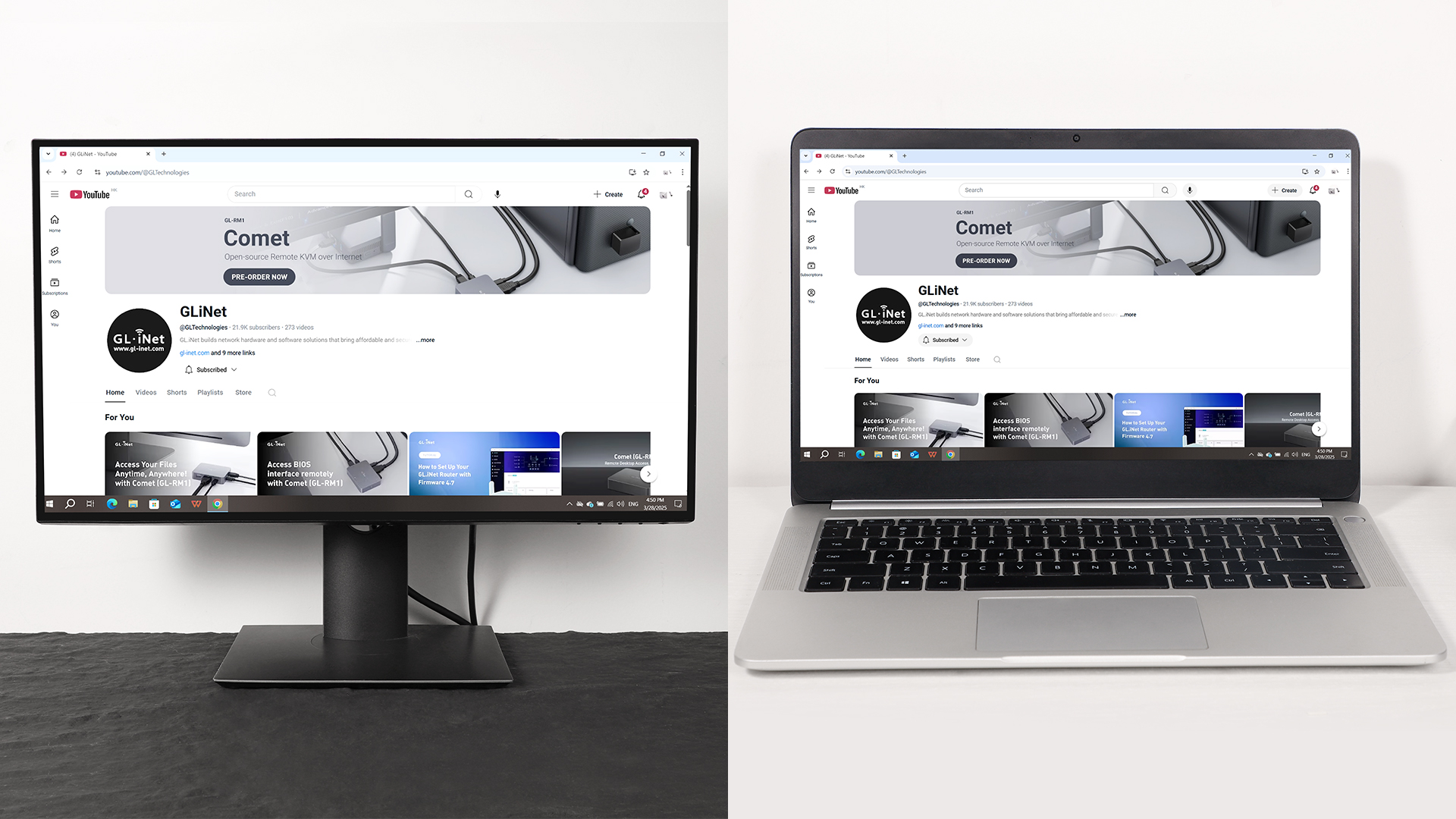
I tested browsing the web and editing documents on the remote computer—everything worked flawlessly with no lag or delays. The responsiveness feels just like using the actual device, making remote work smooth and efficient.
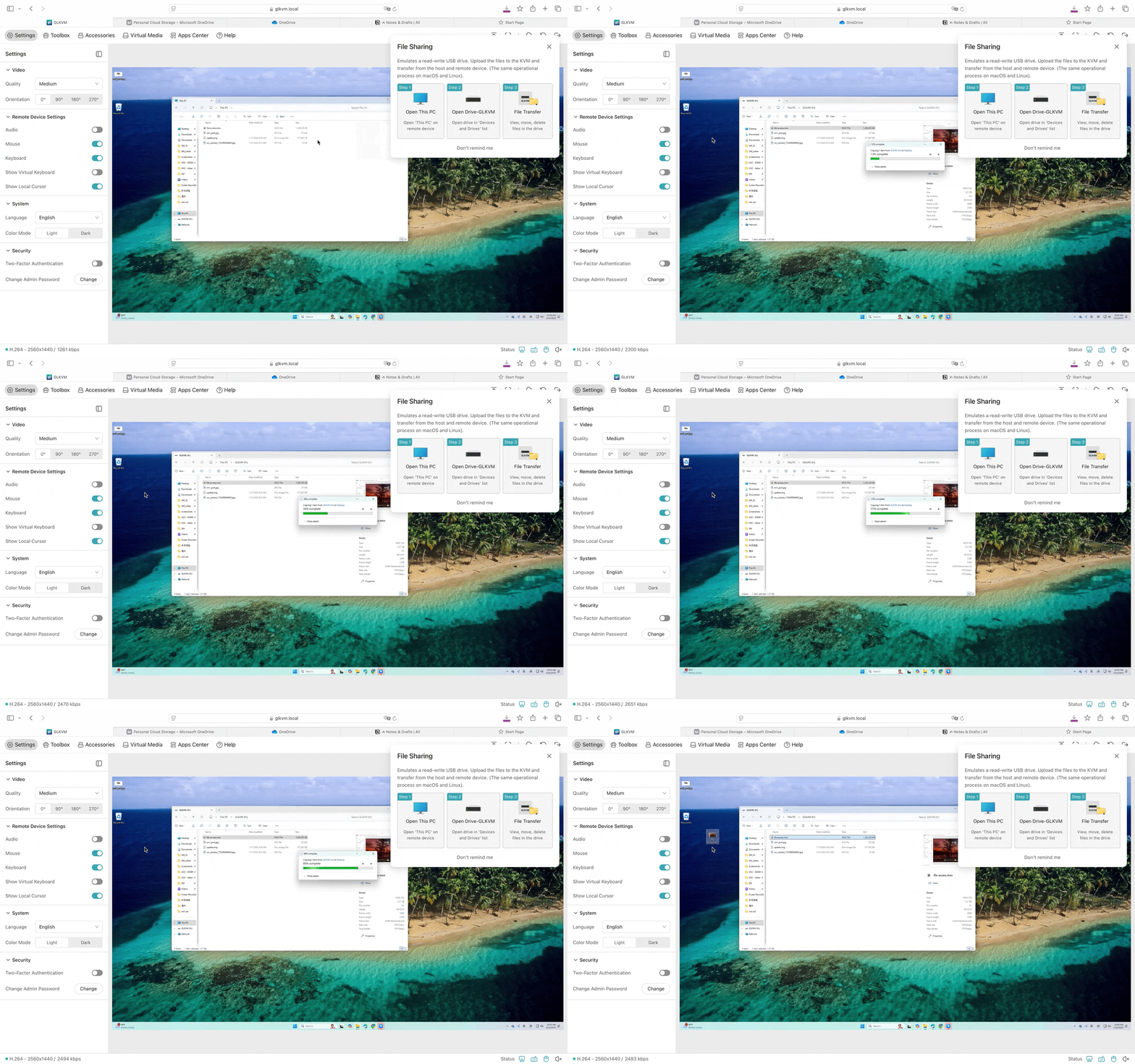
Whether it’s from the Device B to the Device A or vice versa, files can be transferred seamlessly in both directions. This makes remote file management quick, easy, and highly efficient.
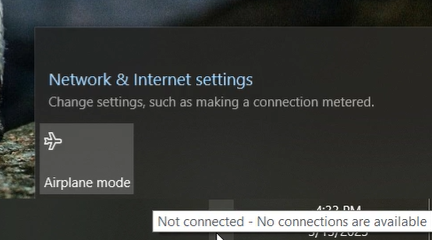
I encountered a small hiccup—Device B lost its internet connection. However, Comet remained completely unaffected and continued to function normally! This let me know that that Comet operates independently of the network, ensuring uninterrupted remote access even in case of connectivity issues on the Device B.
Overally, this product truly amazed me! Setup was straightforward, and key features such as remote control, virtual input, and video output operated without major issues. It may not be a replacement for all remote access use cases, but it may still be a great option for users who require direct hardware-level control across different systems.
{"one"=>"Select 2 or 3 items to compare", "other"=>"{{ count }} of 3 items selected"}