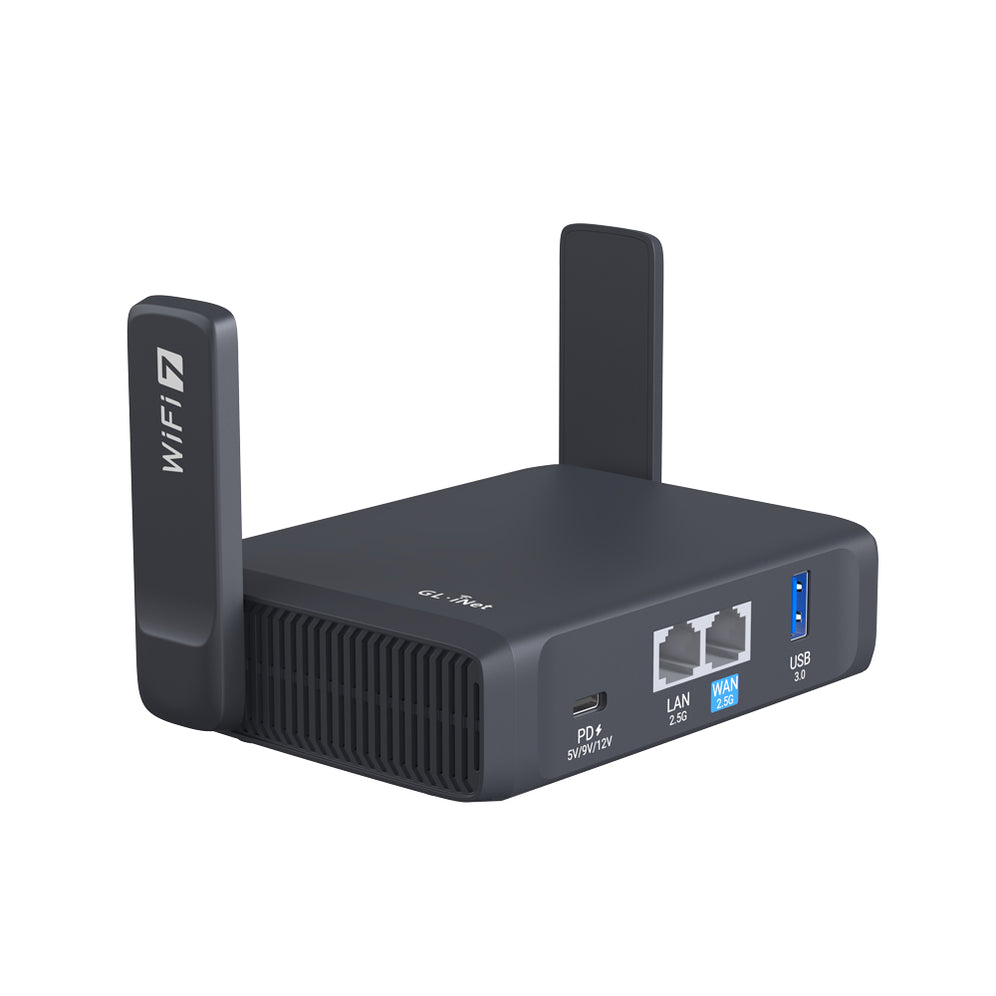
This guide provides comprehensive troubleshooting steps, tips, and tricks for setting up both VPN server and client on GL.iNet routers for a personal WireGuard VPN.
Ensure there are no IP address conflicts between the server and the client. Each device in the WireGuard network should have a unique address within the same subnet.

In the above example, my server’s WireGuard network IP is 10.1.0.1, and two client profiles have been generated, 10.1.0.2/24 and 10.1.0.3/24. Ensure that the first three octets (10.1.0) of the client profiles match the WireGuard server’s IP in the ‘Configuration’ tab. Otherwise, the devices will fail to connect.
Additionally, you will notice that I have modified this server’s IP from the default 10.0.0.1. The reason for this is that the 10.0.0. subnet is often used by other networks (e.g. Xfinity), so you want to prevent any possibility of network conflicts whether it be on your home network or at the client side while traveling. Therefore, I changed the second octet from “0” to “1” so the subnet is now 10.1.0.
WireGuard typically uses UDP port 51820, but you can customize this default port in the server router’s WireGuard configuration section. Using a different port, such as 51821, is recommended if the local firewall blocks the default WireGuard port while traveling. However, in other cases, the local network could be blocking UDP traffic completely, which means you will need to use an alternative VPN that uses TCP such as a Tailscale exit node or OpenVPN.
Refer to the blog on port forwarding for more info on performing this crucial first step correctly.
If you set the DNS server line for your client profile configurations to be the same as your WireGuard server IP (ex. 10.1.0.1), then you must enable “Remote Access LAN” on your GL.iNet server router. This is located on the VPN Dashboard in the gear icon under options on the WireGuard server line.

Lastly, you can configure DNS servers on the server router under Network -> DNS to any preferred DNS server. It is usually recommended to use servers other than your ISP’s for privacy reasons. Cloudflare usually performs best. You may set Google as a backup as well for DNS Servers 3 and 4 manually (8.8.8.8 and 8.8.4.4).
“My server/client setup has been working for a while, but now I can’t connect anymore."
“My connection is very slow and/or unstable”
“I can’t remotely access my GL.iNet server’s admin panel”
If you are still unsuccessful in your troubleshooting efforts, don’t hesitate to make a post in the GL.iNet subreddit (/r/GLiNet) or join our Discord server and use the #tech-support-forum channel. Remember to share detailed logs from your router and/or WireGuard server for effective assistance.

Adam, a Virginia native with a passion for international travel, holds an Electrical Engineering degree from Virginia Tech. He is a Community Specialist at GL.iNet, creator of The Wired Nomad—a resource for digital nomads—and works full-time for the world’s largest satellite operator. Connect with him on his website.
{"one"=>"Select 2 or 3 items to compare", "other"=>"{{ count }} of 3 items selected"}