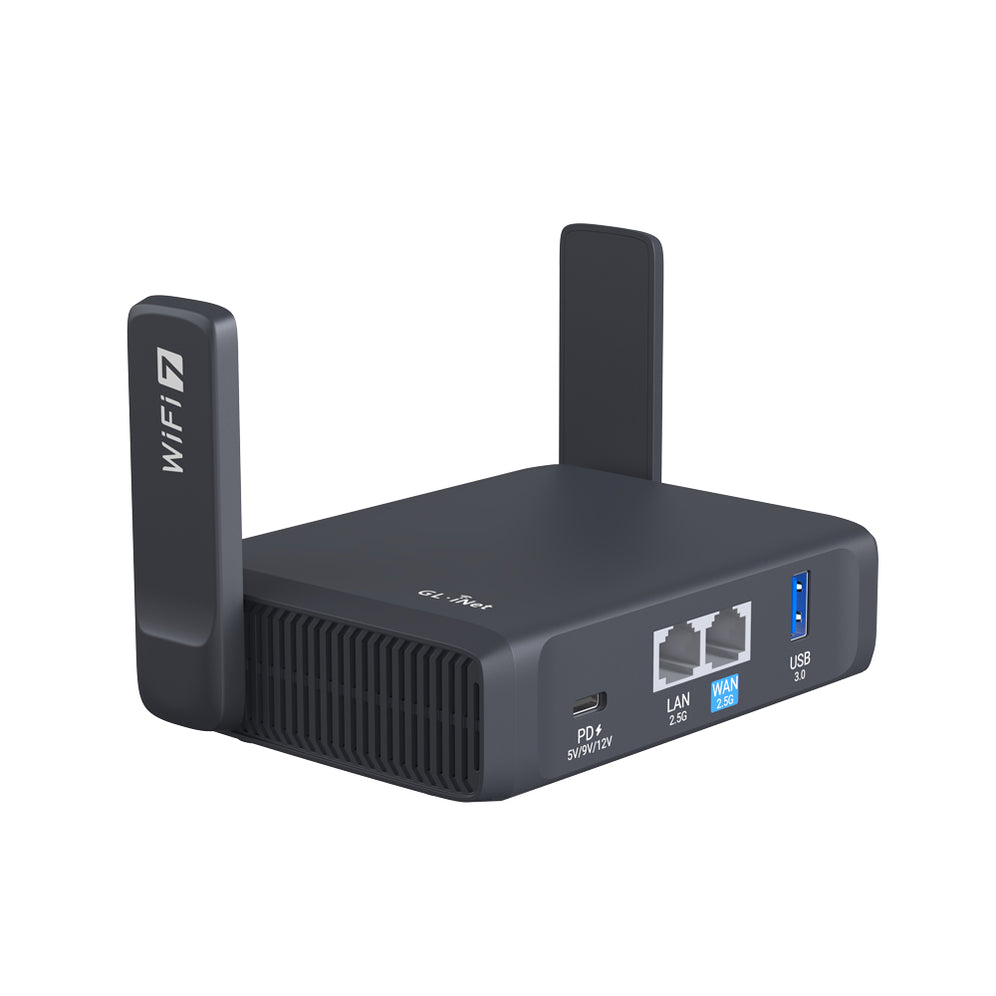
For remote workers using GL.iNet routers, protecting your DNS from leaking is essential—especially when connecting via VPNs like WireGuard or Tailscale. A DNS leak can compromise your privacy by revealing your real location or browsing behavior. If your DNS leak test “fails,” it means DNS queries are escaping outside the VPN tunnel, displaying DNS servers from your client’s local area instead of those configured by the VPN. Even though active DNS traffic monitoring isn’t guaranteed, it’s always best to stay cautious and secure.
DNS servers are responsible for translating website names into IP addresses. These servers are spread all over the world, and even if you’re using a VPN, a DNS leak can reveal your true location by sending requests outside your VPN tunnel. The Wireguard protocol uses a full tunnel VPN by default, so this should not happen especially if you have “Block Non-VPN Traffic” enabled on the client router.
Understanding DNS distance: The closest DNS server to you could be hundreds of miles away, but that’s not necessarily a problem as long as it’s still within the same country as your home server. So, don’t be alarmed if you see a DNS server that’s not super close to your server location.
No matter what DNS settings you set for your Wireguard client device, the DNS traffic will be tunneled and use the DNS servers closest to your Wireguard server’s location. But, if you set the DNS IP in the config file to your Wireguard server IP as described later, you will use cached responses at your server and avoid two roundtrips to your server. By using your server’s DNS as opposed to the local DNS near the client, you sacrifice a small amount of latency for much better throughput/speed performance.
A quick and reliable way to verify your DNS setup is through dnsleaktest.com. Follow these steps:
For optimal security and performance, we recommend setting your server router’s DNS as follows:
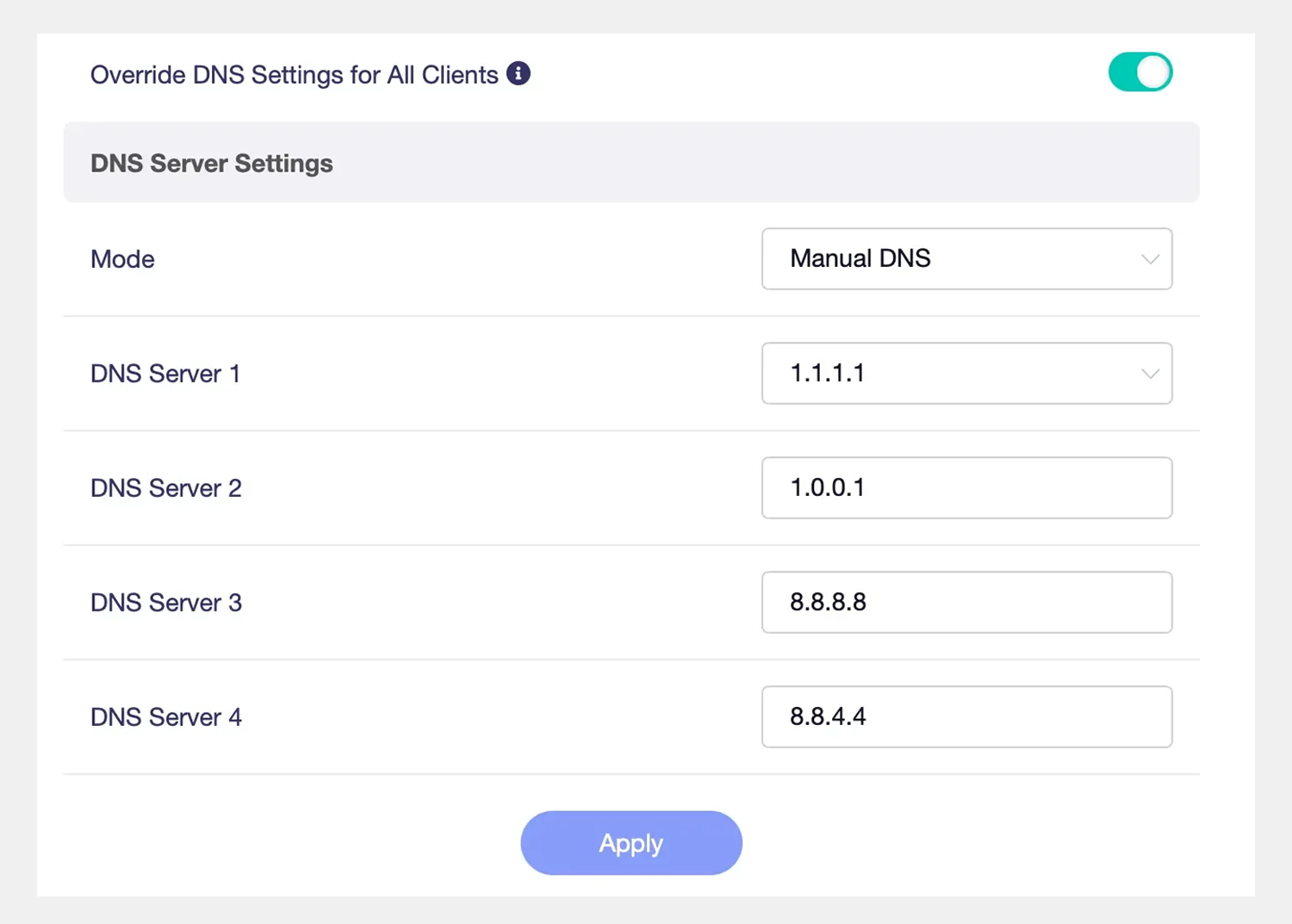
If remote access is required, you need to enable the Remote Access LAN feature on your VPN server:


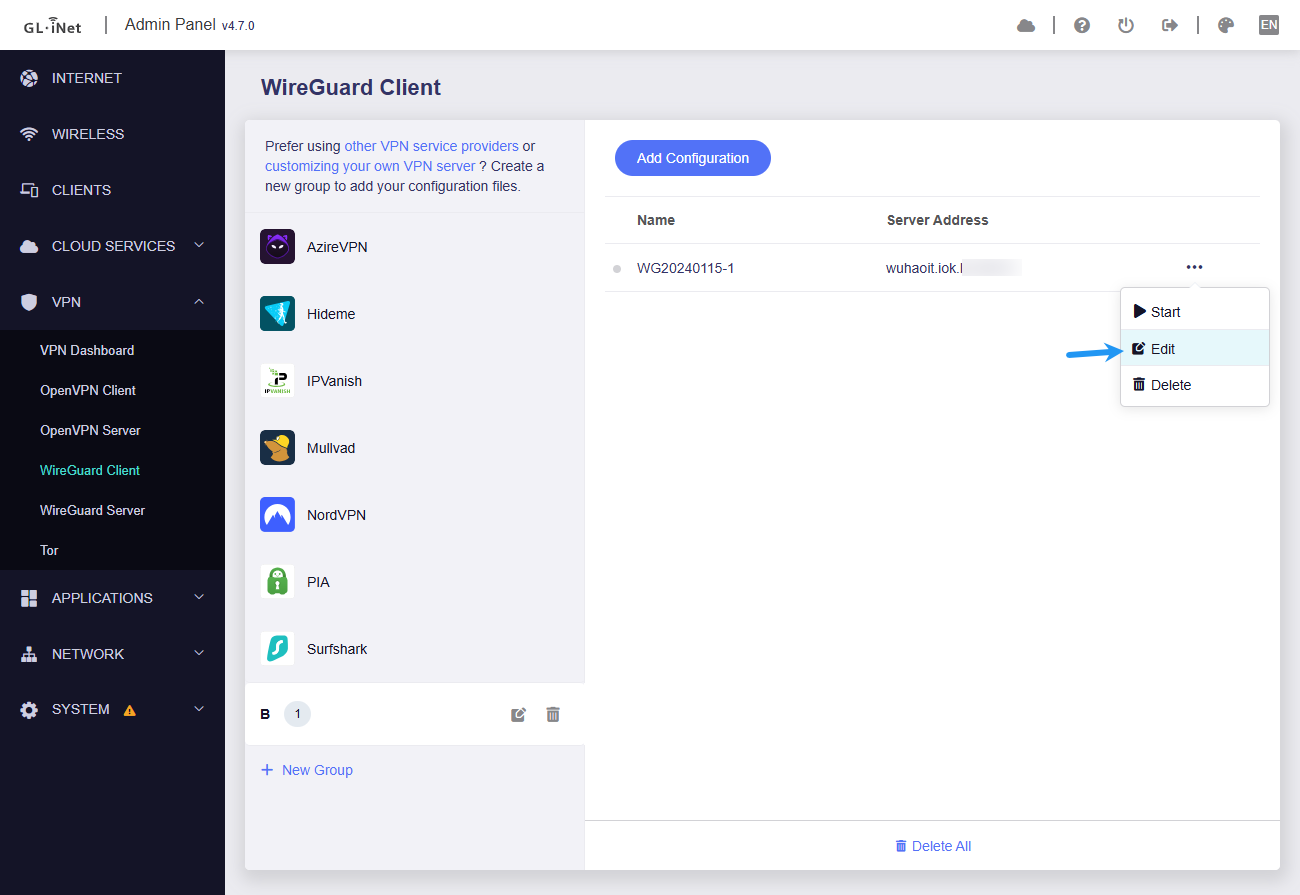
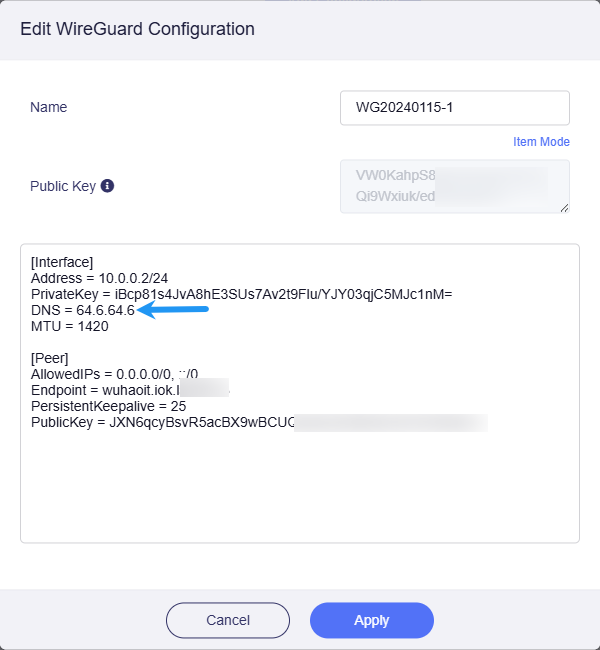
To further enhance DNS performance, modify the WireGuard client configuration to point directly to the VPN server’s IP:
Example of client router DNS settings:
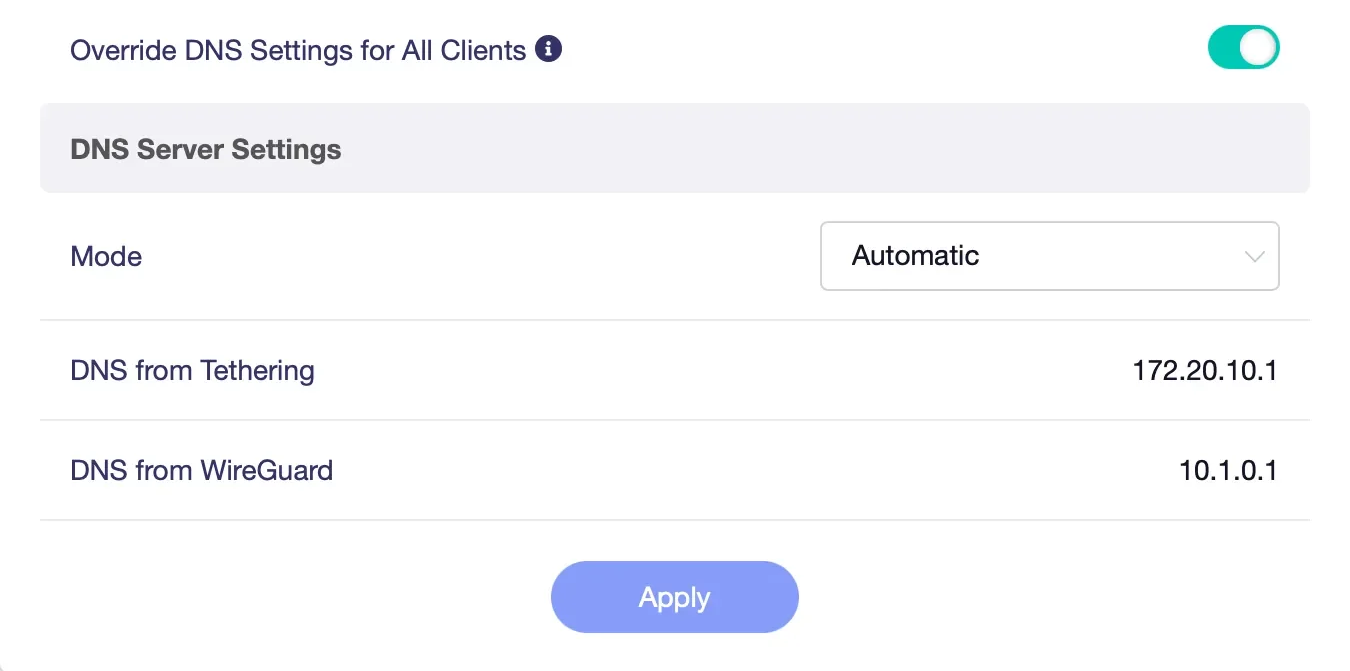
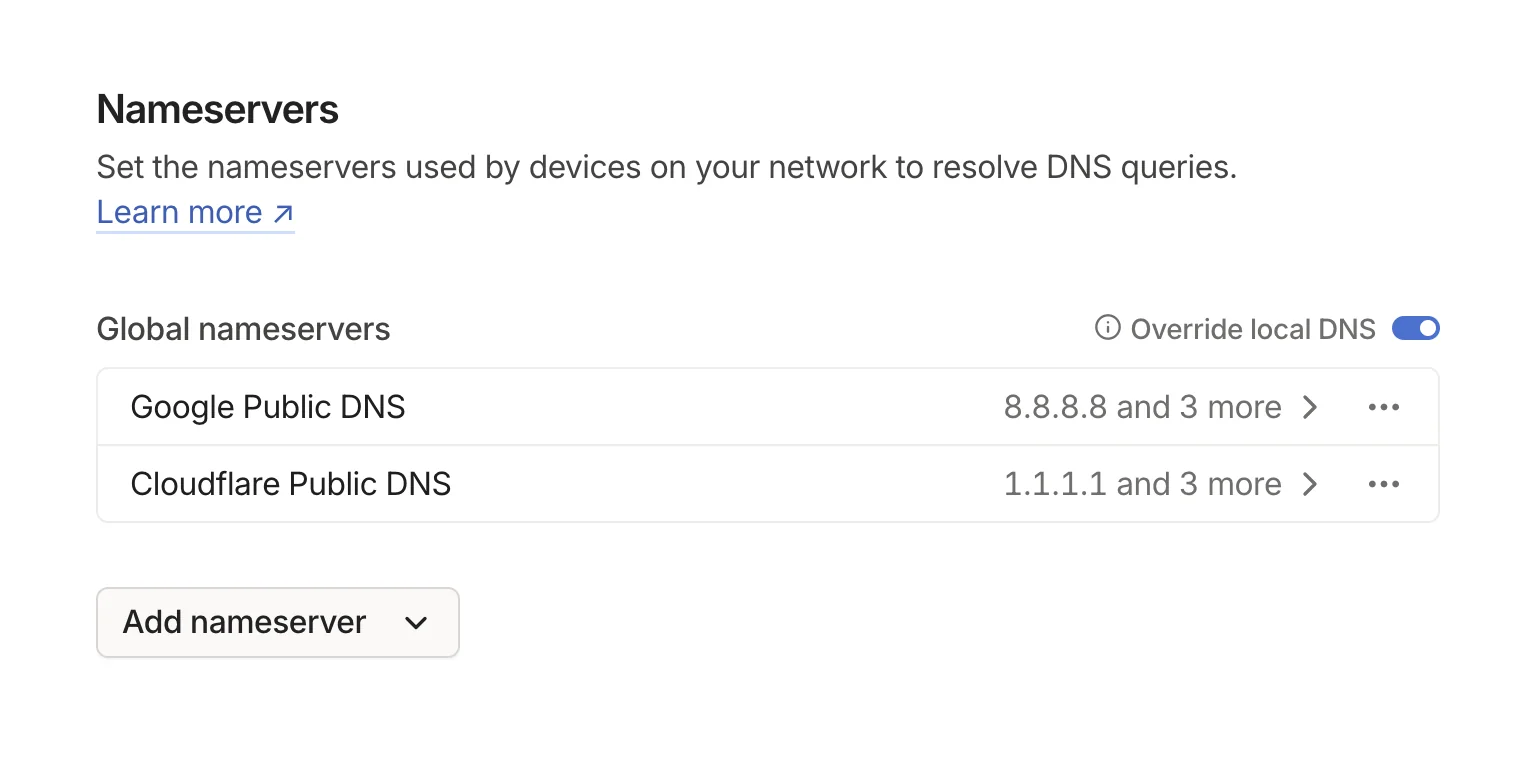
Tailscale automatically routes DNS queries through its secure infrastructure, but you can override this with custom DNS settings:
Example of Tailscale DNS settings:
Using the right DNS settings and verifying your setup ensures a seamless and secure remote work experience. Whether you prefer WireGuard or Tailscale, setting your DNS correctly prevents leaks, enhances privacy, and boosts network performance. Be proactive by running DNS leak tests regularly and fine-tuning your settings for the best results. With GL.iNet routers, managing your VPN and DNS settings becomes easy, empowering you to stay productive and secure—no matter where your work takes you.

Adam, a Virginia native with a passion for international travel, holds an Electrical Engineering degree from Virginia Tech. He is a Community Specialist at GL.iNet, creator of The Wired Nomad—a resource for digital nomads—and works full-time for the world’s largest satellite operator. Connect with him on his website.
{"one"=>"Select 2 or 3 items to compare", "other"=>"{{ count }} of 3 items selected"}